Choyong F15 Camper
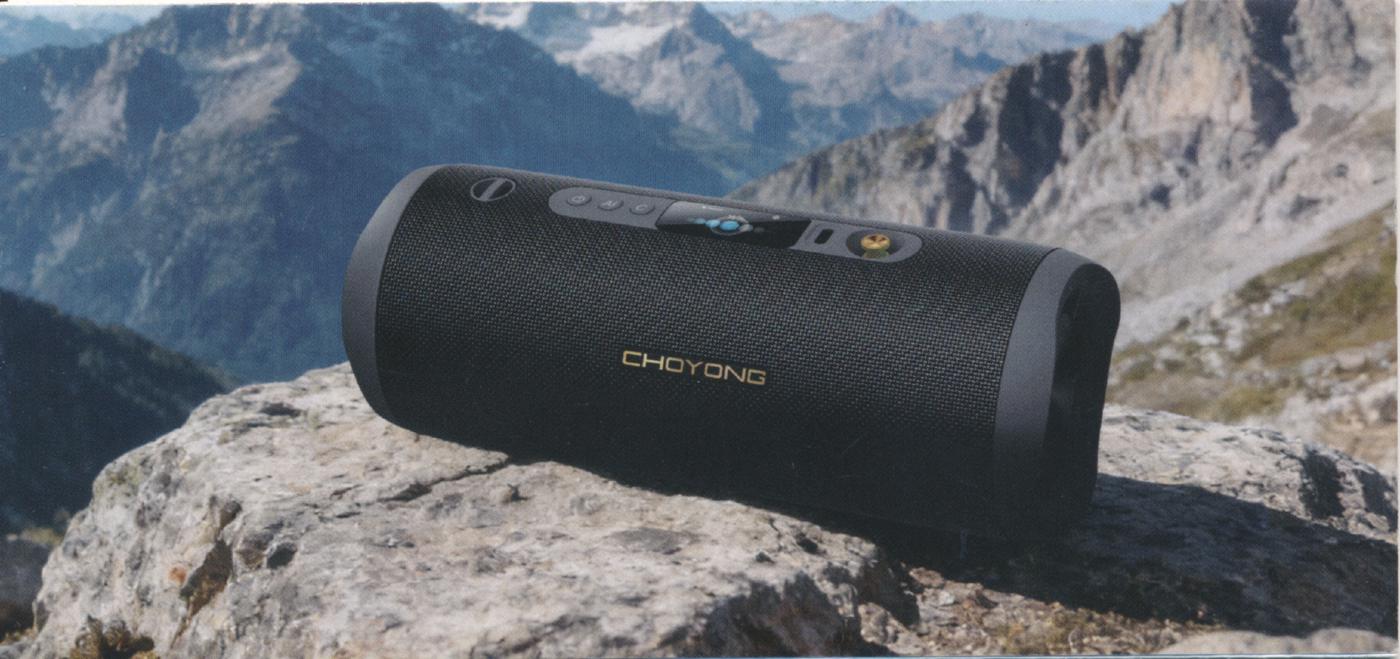
Radio today comes in many forms, colors, shapes, and functions. When it comes to aesthetics, design, and the variety of technical possibilities, the Chinese company Choyong has become one of the leading names of our time. Their lineup includes the Voyager—arguably the world’s smallest internet radio—as well as the versatile LC90 and LC100, the Maestro for discerning ears—and much more. That seems to cover just about everything there is to cover—or so you’d think. The new F15 Camper proves that there’s still more to come.
An internet radio shaped like a small tube—now that’s something new. With dimensions of 215 × 85 × 85 mm and a weight of 700 grams, you can take it anywhere. With its 40-watt two-way system, it delivers surprisingly powerful sound. A true all-rounder with Bluetooth, 4G, and voice input. Battery operation makes it portable. It can be used on a local Wi-Fi network or anywhere without geographical restrictions—though this is only possible if you activate its eSIM functionality through Choyong (for a fee). “Camper” is a fitting name. But the F15 isn’t just fun for camping or on your patio at home.
As with all other Choyong internet radios, the Camper relies on the company’s own infrastructure. When it comes to the internet database, Choyong doesn’t want to be dependent on third-party providers, which can go bankrupt, disappear from the market, or be sold off at any time. The southern Chinese manufacturer maintains its own aggregator, which is constantly updated automatically. To improve quality, Choyong also has volunteers in many countries around the world who help test and update the stations regularly. There are around 50,000 stations to choose from.
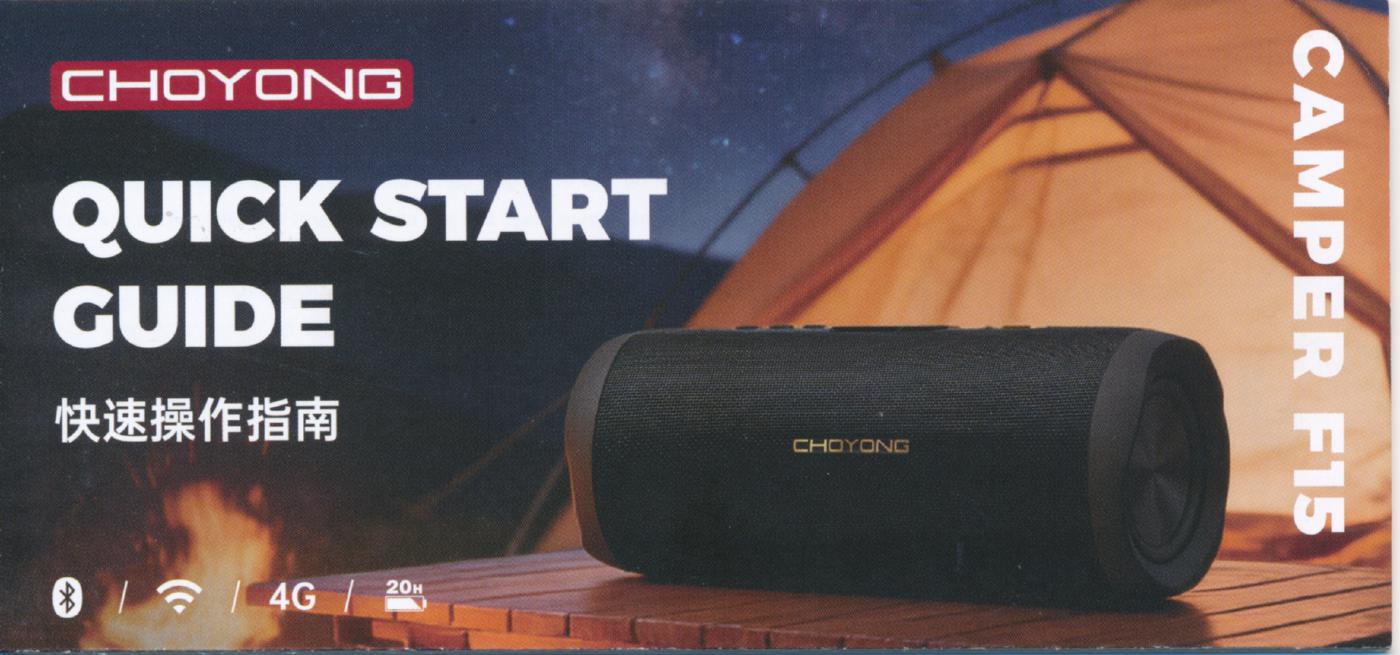
The Camper is delivered well-packaged in a sturdy box—along with a charging cable and a “Quick Start Guide,” which is a concise but clear user manual. Since this guide is only available in Chinese and English, and to help you better understand how the Choyong Camper F15 works, I’ll walk you through the device in detail here.
Important: Because the devices cannot be shipped by air with a fully charged battery, the battery level at the time of delivery is so low that the device may initially not respond at all. Therefore, you must charge it first using the included cable. Any smartphone charger—whether for Samsung, iPhone, Android, etc.—can be used for this purpose. The charging time for the initial charge of the built-in battery is approximately 4 hours.
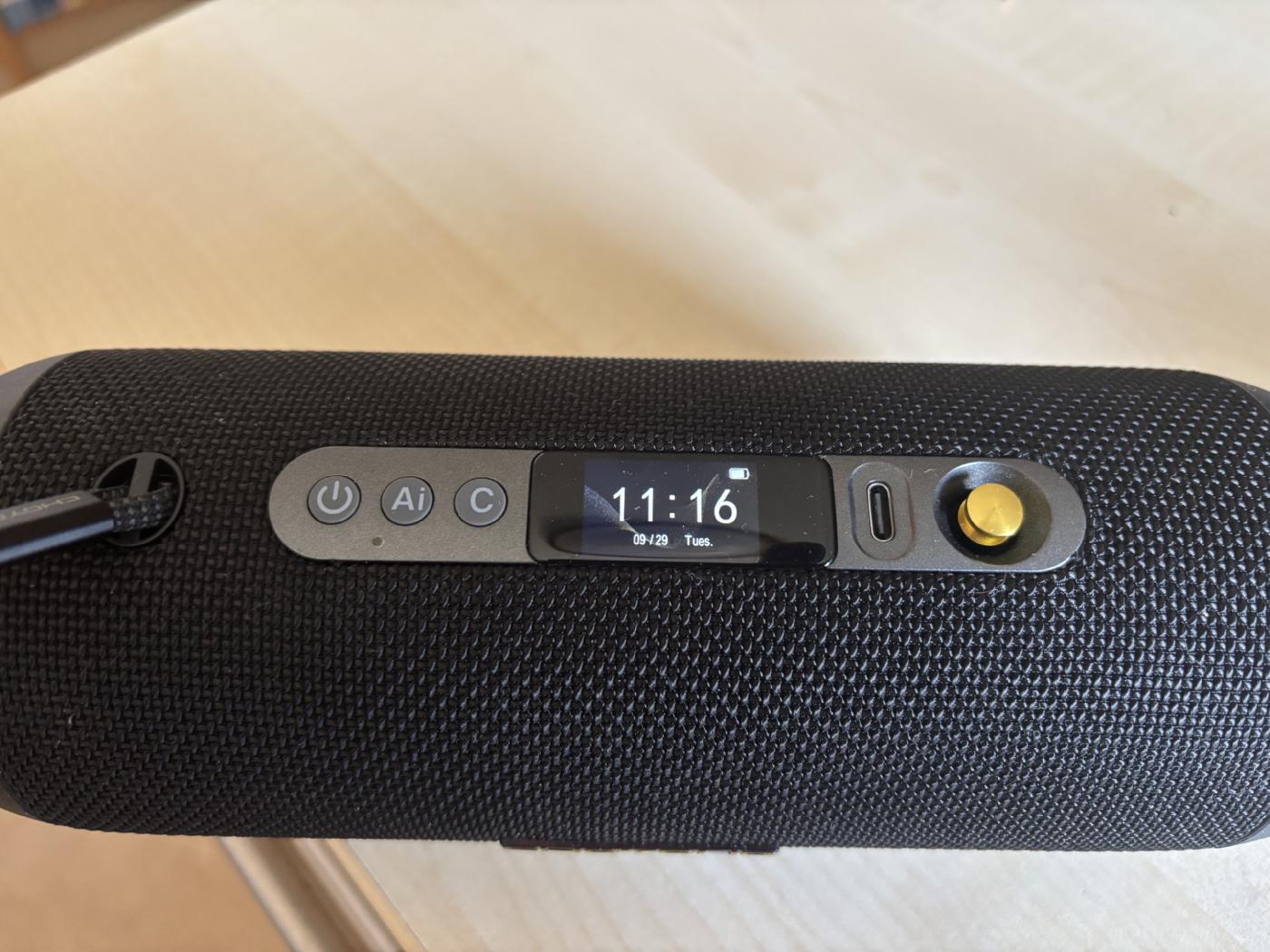
To turn on the radio, press and hold the small power button on the far left of the top of the device for three seconds. Only then will the Choyong logo appear, and the radio will start up. So: Don’t just press it briefly and wonder why nothing happens.
After startup, the display shows the time.
The next step is to connect the device to a Wi-Fi network or set up an eSIM. The Voyager features a touchscreen. Use your fingers to scroll the screen from top to bottom or horizontally. Press the “C” button to go back. First, swipe down to open the configuration menu. There, you can use the “SET” function to configure the eSIM settings and/or connect to a Wi-Fi network. Here’s how:
1. Turn on Wi-Fi (Wi-Fi)
2. Select your modem from the list that appears.
3. You’ll then be prompted to enter the key (network key). Once you’re done, just save—and you’ll have access to approximately 50,000 radio stations from all over the world—all the way to the Solomon Islands.
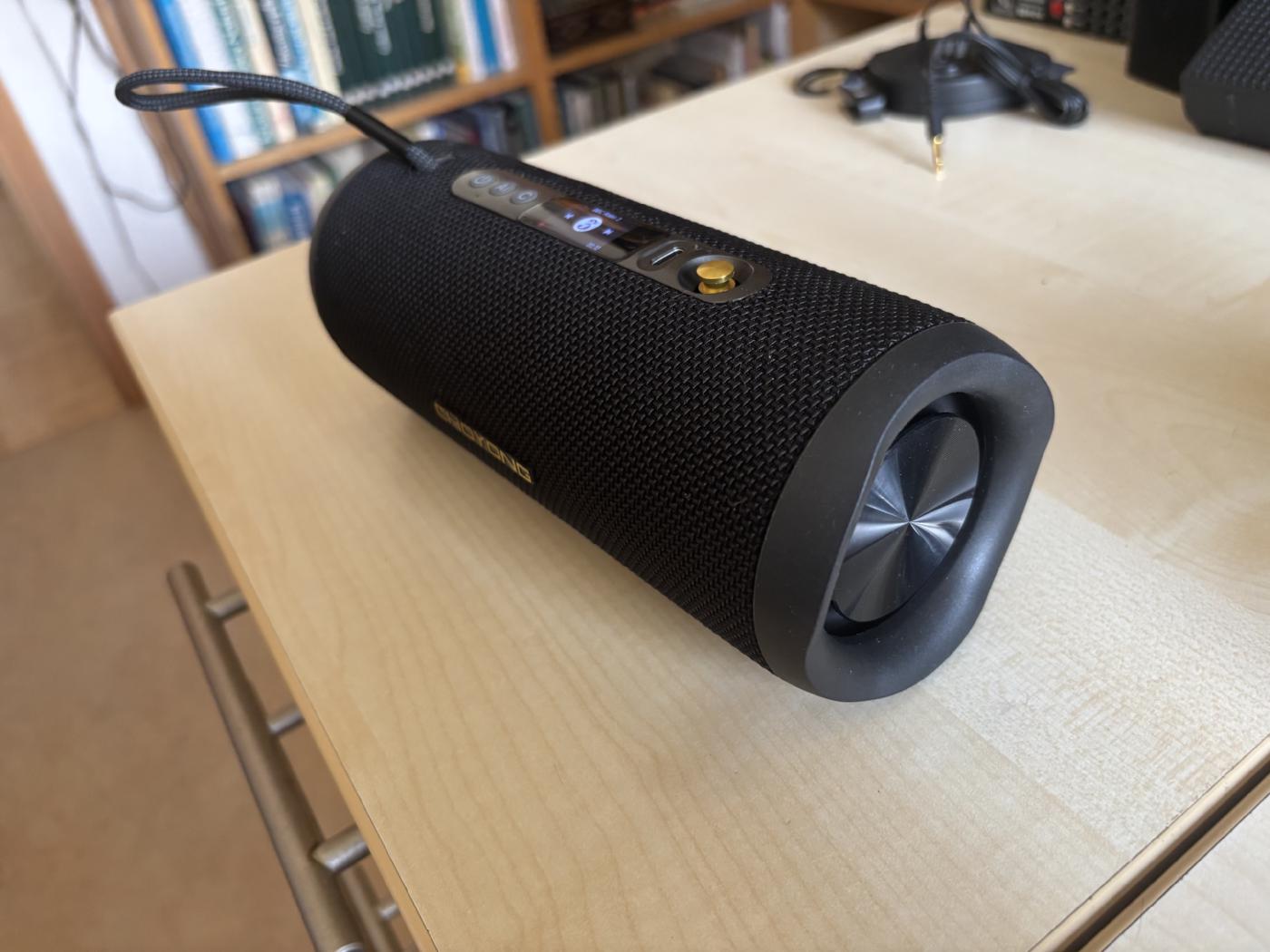
Here, you can also adjust the backlight, among other settings. What you choose here is, of course, a matter of personal preference. Personally, I selected “Always.” While this uses slightly more power, it keeps the channel and time displayed at all times.
You can also set the device’s playback time here—and any available software updates can be installed here as well.
The gold multifunction button on the right side serves a special purpose: It functions both as an OK button (when pressed) and as a control for volume, treble, and bass.
eSIM
Choyong offers its customers an eSIM feature. This must be activated directly through Choyong. A one-month trial costs 99 cents; after that, it’s $15 per month, and you can cancel at any time. There’s an eSIM for Europe, Africa, and Asia, and one for the Americas.
Bluetooth
The Voyager can also be used as a “Bluetooth speaker.” Just pair it and you’re good to go. You can then use the Bluetooth function to control an external digital recorder, for example.
Internet radio
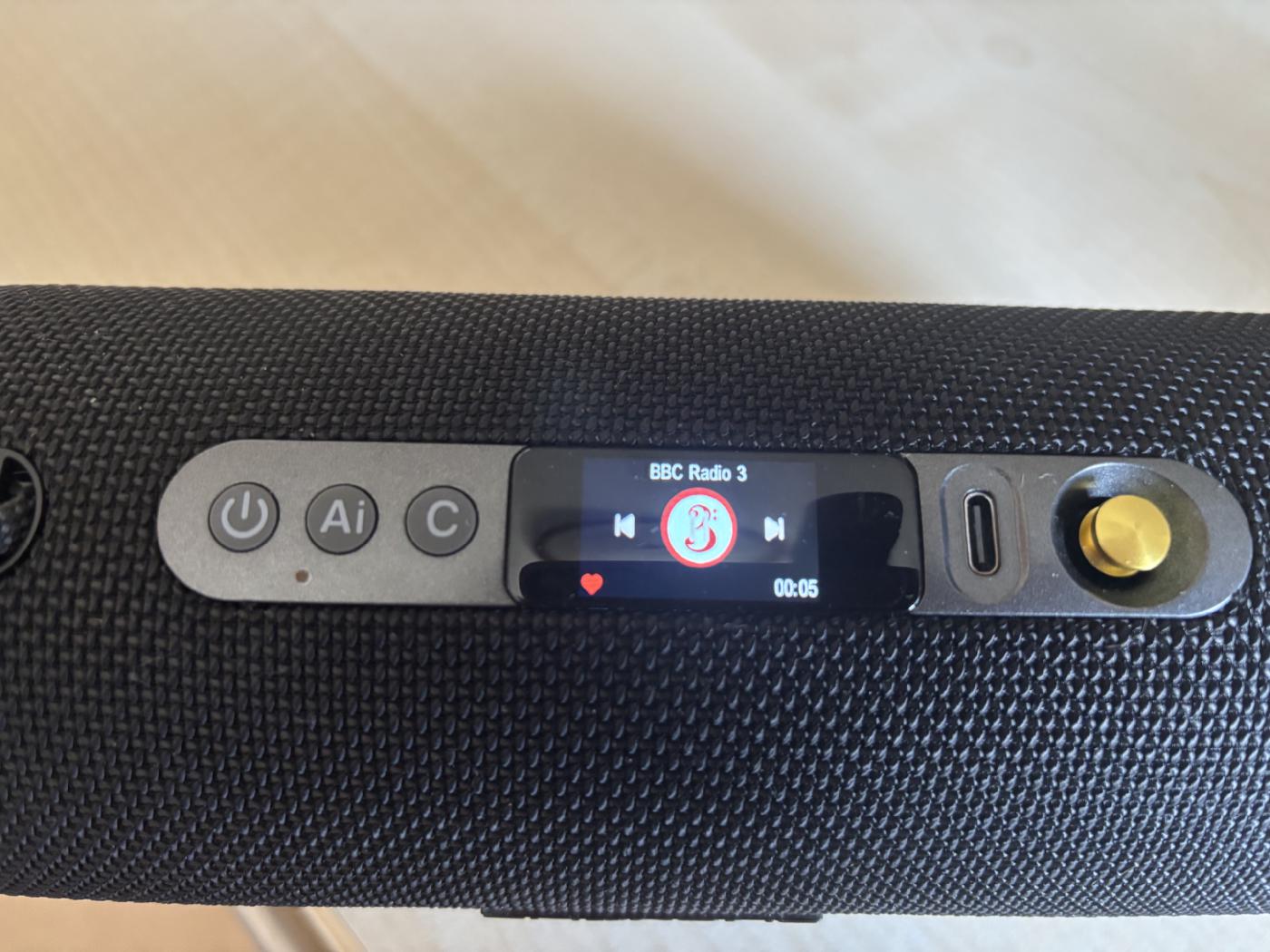
As we've seen, the Camper lets you tune in to around 50,000 radio stations from all over the world. How does it work? When you swipe the screen to the right, the first icons that appear are “Search” and a little heart (‘Favorite’). If you select “Search,” you'll launch “Voice Input,” which lets you search using your voice. In the next step, the user can press and hold “AI.” Once the microphone icon appears, you can say the name of the station you’re looking for, such as “BBC,” “Kontrafunk,” etc. The Camper begins the search—and if it has understood the name correctly, it lists the stations found, from which you can then choose. If you press the gold OK button on the right instead of “AI,” you can search by artist, composer, or song title. This is explained in detail below.
In addition to voice search, it’s also possible to search for a station the conventional way: If you swipe across the touchscreen a second time, icons for “History”—the stations you’ve listened to most recently—and “Station” appear . The latter launches a manual search for stations. First, select the desired continent, then the country where the station is based.
If you’ve found a station you particularly enjoy listening to, you can mark it with the little heart—after that, it’s easily accessible via your favorites.
Under the “Favorites” section (heart icon), you can then access your favorite stations or music at any time—and use the “Add” function to add streams if a station is ever missing.
Podcasts
If you swipe across the touchscreen a third time, the icons for “Music” and “Podcasts” appear. By default, podcasts in Chinese are available there. However, you can change this in the settings. Simply select the desired podcast language there—and you’re good to go. German is also included. Podcasts can also be added to the favorites list using the heart icon.
Music Box
The F15 Camper isn’t just a radio and a device for listening to podcasts. In fact, it can be transformed into a real jukebox.
As we saw in the “Internet Radio” chapter, the Camper has voice input. Once you’ve pressed “Search,” the “Ai” option appears for station search. You can also press and hold the gold OK button on the right and then say the name of the artist, composer, or the song you want. If everything was understood correctly, the Camper will suggest a whole list of matches from which you can choose. The jukebox feature then begins playing the selected track—and afterward, you’ll hear more songs from that category, one after another.
You can mark your favorite tracks with the little heart icon and add them to your favorites list.
The “Music” icon, which appears after swiping left three times, plays random music—in case you like that sort of thing or simply don’t want to decide for yourself.
Conclusion:
Small, stylish, and powerful—that’s how you could briefly summarize the review of the F15 Camper—even if it doesn’t quite do justice to its full range of features. The small touchscreen requires a bit of finesse—and sometimes a station starts playing instead of scrolling. But that’s what the “C” button is for: to cancel. A very nice device that’s not only a lot of fun but, with its decorative design, is also a real visual treat.
It’s a pure internet radio with truly amazingly beautiful sound—provided, of course, that the selected station doesn’t skimp too much on the data rate. It’s also a music box and a treasure trove for fans of podcasts and news.
The F15 Camper costs 149 US dollars at Choyong. Prices on Amazon may vary.
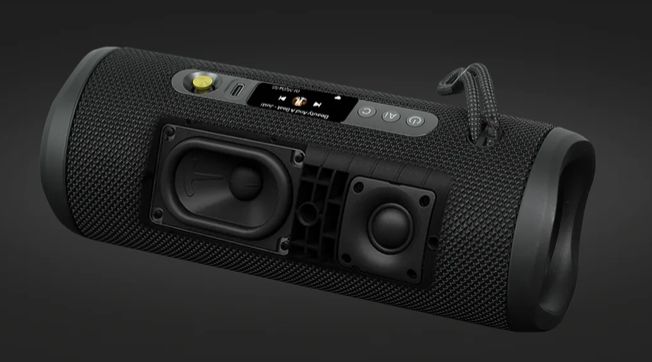
For more information, visit the Choyong website, where you can also purchase the F15 Camper:
https://www.choyongradio.com/
Radio today comes in many forms, colors, shapes, and functions. When it comes to aesthetics, design, and the variety of technical possibilities, the Chinese company Choyong has become one of the leading names of our time. Their lineup includes the Voyager—arguably the world’s smallest internet radio—as well as the versatile LC90 and LC100, the Maestro for discerning ears—and much more. That seems to cover just about everything there is to cover—or so you’d think. The new F15 Camper proves that there’s still more to come.
An internet radio shaped like a small tube—now that’s something new. With dimensions of 215 × 85 × 85 mm and a weight of 700 grams, you can take it anywhere. With its 40-watt two-way system, it delivers surprisingly powerful sound. A true all-rounder with Bluetooth, 4G, and voice input. Battery operation makes it portable. It can be used on a local Wi-Fi network or anywhere without geographical restrictions—though this is only possible if you activate its eSIM functionality through Choyong (for a fee). “Camper” is a fitting name. But the F15 isn’t just fun for camping or on your patio at home.
As with all other Choyong internet radios, the Camper relies on the company’s own infrastructure. When it comes to the internet database, Choyong doesn’t want to be dependent on third-party providers, which can go bankrupt, disappear from the market, or be sold off at any time. The southern Chinese manufacturer maintains its own aggregator, which is constantly updated automatically. To improve quality, Choyong also has volunteers in many countries around the world who help test and update the stations regularly. There are around 50,000 stations to choose from.
The Camper is delivered well-packaged in a sturdy box—along with a charging cable and a “Quick Start Guide,” which is a concise but clear user manual. Since this guide is only available in Chinese and English, and to help you better understand how the Choyong Camper F15 works, I’ll walk you through the device in detail here.
Important: Because the devices cannot be shipped by air with a fully charged battery, the battery level at the time of delivery is so low that the device may initially not respond at all. Therefore, you must charge it first using the included cable. Any smartphone charger—whether for Samsung, iPhone, Android, etc.—can be used for this purpose. The charging time for the initial charge of the built-in battery is approximately 4 hours.
To turn on the radio, press and hold the small power button on the far left of the top of the device for three seconds. Only then will the Choyong logo appear, and the radio will start up. So: Don’t just press it briefly and wonder why nothing happens.
After startup, the display shows the time.
The next step is to connect the device to a Wi-Fi network or set up an eSIM. The Voyager features a touchscreen. Use your fingers to scroll the screen from top to bottom or horizontally. Press the “C” button to go back. First, swipe down to open the configuration menu. There, you can use the “SET” function to configure the eSIM settings and/or connect to a Wi-Fi network. Here’s how:
1. Turn on Wi-Fi (Wi-Fi)
2. Select your modem from the list that appears.
3. You’ll then be prompted to enter the key (network key). Once you’re done, just save—and you’ll have access to approximately 50,000 radio stations from all over the world—all the way to the Solomon Islands.
Here, you can also adjust the backlight, among other settings. What you choose here is, of course, a matter of personal preference. Personally, I selected “Always.” While this uses slightly more power, it keeps the channel and time displayed at all times.
You can also set the device’s playback time here—and any available software updates can be installed here as well.
The gold multifunction button on the right side serves a special purpose: It functions both as an OK button (when pressed) and as a control for volume, treble, and bass.
eSIM
Choyong offers its customers an eSIM feature. This must be activated directly through Choyong. A one-month trial costs 99 cents; after that, it’s $15 per month, and you can cancel at any time. There’s an eSIM for Europe, Africa, and Asia, and one for the Americas.
Bluetooth
The Voyager can also be used as a “Bluetooth speaker.” Just pair it and you’re good to go. You can then use the Bluetooth function to control an external digital recorder, for example.
Internet radio
As we've seen, the Camper lets you tune in to around 50,000 radio stations from all over the world. How does it work? When you swipe the screen to the right, the first icons that appear are “Search” and a little heart (‘Favorite’). If you select “Search,” you'll launch “Voice Input,” which lets you search using your voice. In the next step, the user can press and hold “AI.” Once the microphone icon appears, you can say the name of the station you’re looking for, such as “BBC,” “Kontrafunk,” etc. The Camper begins the search—and if it has understood the name correctly, it lists the stations found, from which you can then choose. If you press the gold OK button on the right instead of “AI,” you can search by artist, composer, or song title. This is explained in detail below.
In addition to voice search, it’s also possible to search for a station the conventional way: If you swipe across the touchscreen a second time, icons for “History”—the stations you’ve listened to most recently—and “Station” appear . The latter launches a manual search for stations. First, select the desired continent, then the country where the station is based.
If you’ve found a station you particularly enjoy listening to, you can mark it with the little heart—after that, it’s easily accessible via your favorites.
Under the “Favorites” section (heart icon), you can then access your favorite stations or music at any time—and use the “Add” function to add streams if a station is ever missing.
Podcasts
If you swipe across the touchscreen a third time, the icons for “Music” and “Podcasts” appear. By default, podcasts in Chinese are available there. However, you can change this in the settings. Simply select the desired podcast language there—and you’re good to go. German is also included. Podcasts can also be added to the favorites list using the heart icon.
Music Box
The F15 Camper isn’t just a radio and a device for listening to podcasts. In fact, it can be transformed into a real jukebox.
As we saw in the “Internet Radio” chapter, the Camper has voice input. Once you’ve pressed “Search,” the “Ai” option appears for station search. You can also press and hold the gold OK button on the right and then say the name of the artist, composer, or the song you want. If everything was understood correctly, the Camper will suggest a whole list of matches from which you can choose. The jukebox feature then begins playing the selected track—and afterward, you’ll hear more songs from that category, one after another.
You can mark your favorite tracks with the little heart icon and add them to your favorites list.
The “Music” icon, which appears after swiping left three times, plays random music—in case you like that sort of thing or simply don’t want to decide for yourself.
Conclusion:
Small, stylish, and powerful—that’s how you could briefly summarize the review of the F15 Camper—even if it doesn’t quite do justice to its full range of features. The small touchscreen requires a bit of finesse—and sometimes a station starts playing instead of scrolling. But that’s what the “C” button is for: to cancel. A very nice device that’s not only a lot of fun but, with its decorative design, is also a real visual treat.
It’s a pure internet radio with truly amazingly beautiful sound—provided, of course, that the selected station doesn’t skimp too much on the data rate. It’s also a music box and a treasure trove for fans of podcasts and news.
The F15 Camper costs 149 US dollars at Choyong. Prices on Amazon may vary.
For more information, visit the Choyong website, where you can also purchase the F15 Camper:
https://www.choyongradio.com/